

Modes
PaygreenJS works in one of two modes. Pick the one that matches your use case.
| Mode | Use it for |
|---|---|
payment | Drive an existing Payment Order to authorization. The buyer pays on your page. |
instrument | Save a card or wallet as a reusable instrument, with or without an initial authorization. |
payment mode
payment modeDisplays a payment form based on a previously created Payment Order. The buyer pays an exact amount that was set server-side.
paygreenjs.init({
  publicKey: "pk_xxx",
  mode: "payment",
  paymentOrder: { id: "po_xxx", objectSecret: "xxx" },
  instrument: { id: "ins_fc6409dc32f248839295539623276cl98" }, // Optionnal
  paymentMethod: "bank_card", // Optionnal
});
Required:
- A Payment Order id and its single-use object secret.
- Your public key.
Optional:
- An
instrument.idto pay with a saved instrument (one-click). - A forced
paymentMethodto skip the multi-method picker.
Emits:
-
ACTUAL_FLOW_PAYMENT_DONEafter a successful payment step (partial payment possible) FULL_PAYMENT_DONEonce the total amount has been fully paid or authorizedPAYMENT_FAILwhen the terminal reports a failure.
instrument mode
instrument modeCollects and stores payment information without charging the buyer immediately. The created instrument can be reused for one or more later payments.
paygreenjs.on(paygreenjs.Events.INSTRUMENT_READY, (event) => {
  console.log("Instrument created:", event.detail.id);
});

paygreenjs.init({
  publicKey: "pk_xxx",
  mode: "instrument",
  paymentMethod: "bank_card",
  buyer: { id: "buy_xxx" },
  modeOptions: { authorizedInstrument: true },
});
Required:
- Your public key.
- The
paymentMethodto tokenize. buyer.idwhenauthorizedInstrumentistrue
Optional:
modeOptions.authorizedInstrument— create the instrument and authorize it in one call (with 3DS if required).modeOptions.shopId— marketplace setup: link the instrument to a sub-shop.
Emits INSTRUMENT_READY on success and INSTRUMENT_FAIL on failure.
Choosing the right mode
| Your flow | Mode |
|---|---|
| Synchronous : buyer stays on your checkout page until the payment is taken. | payment |
| Saved card : collect payment details now, charge later (or never). | instrument |
| Asynchronous : final amount unknown at start (tips, variable shipping, etc.). | instrument first to collect, then payment with instrument.id once the Payment Order is created. |
Synchronous Payment Flow
Buyer stays on your checkout page until the payment is taken.
How it works:
- Initialize PGJS with your payment order.
- The buyer enters their information and pays.
- You receive updates via JS events and API hooks.
This flow requires no extra steps.
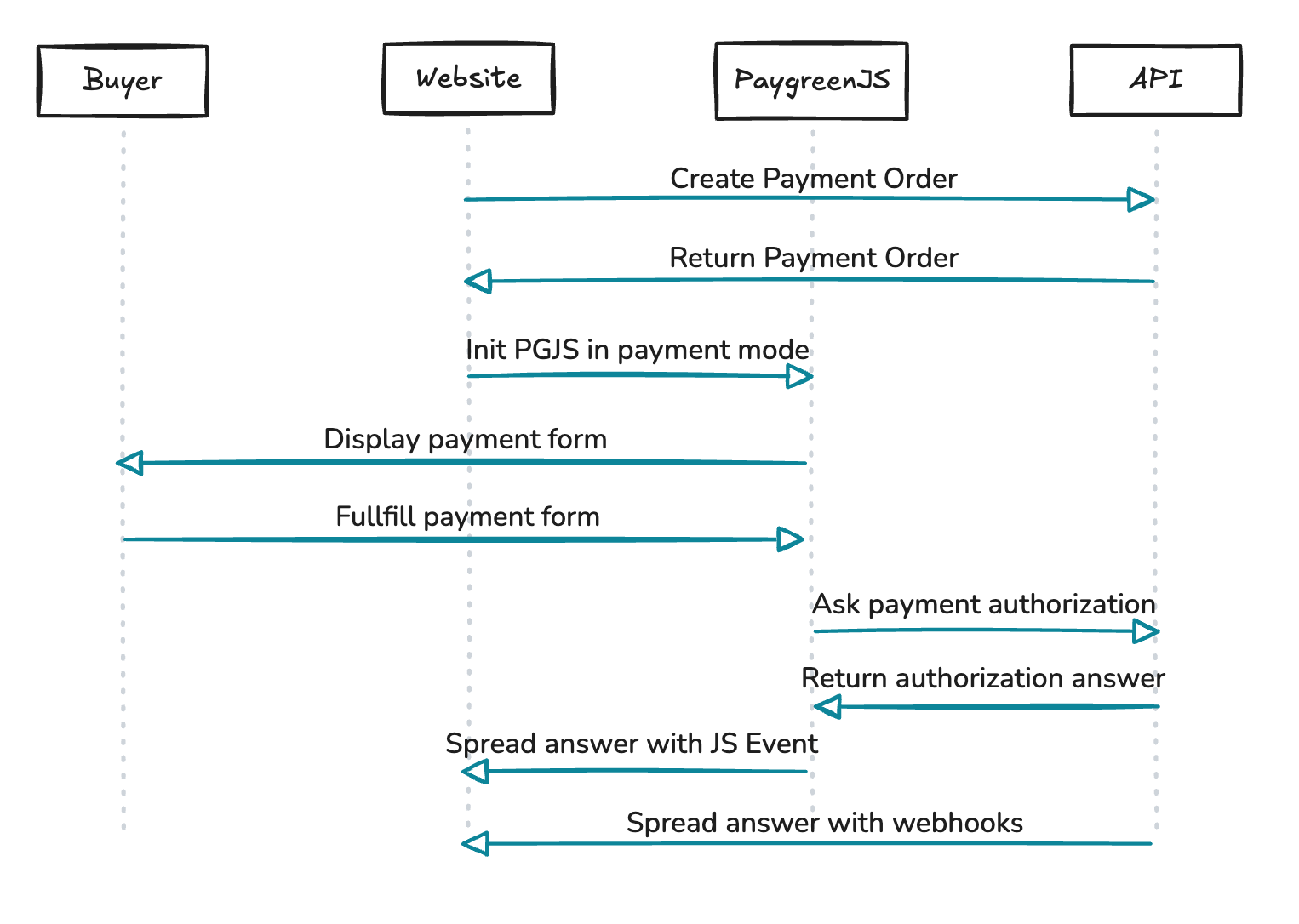
Synchronous Payment Flow
Instrument Flow (Saved Card)
Collect payment details now, charge later (or never).
How it works:
- Initialize PGJS in
instrumentmode. - The buyer enters their payment details.
- You get an instrument that can be used later to make a payment.
No charge is made because no payment order is linked.
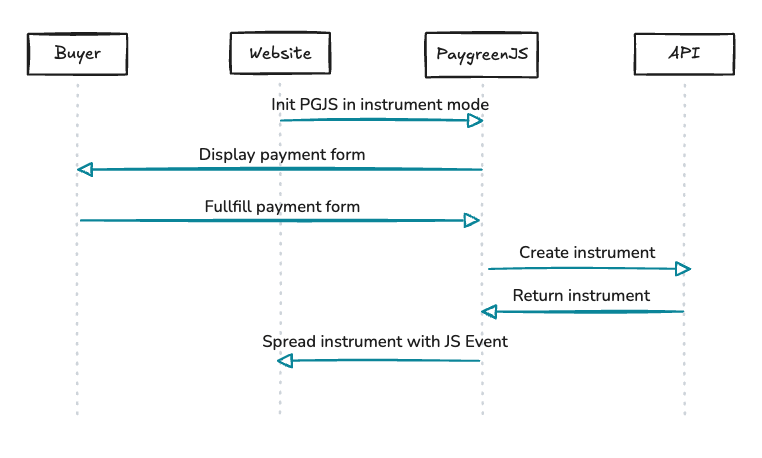
Synchronous Intrument Flow
Asynchronous Payment Flow
Collect the buyer’s payment information before creating the payment order.
For example, if you have a tips system, the final amount is unknown until the buyer enters it.
Solution: combine instrument and payment modes.
- Initialize PGJS in instrument mode to get an instrument.
- Create the payment order with the final amount (including tips).
- Unmount and Re-initialize PGJS in
paymentmode and pass the previously obtained instrumentId.
The payment is then processed automatically using the instrument.
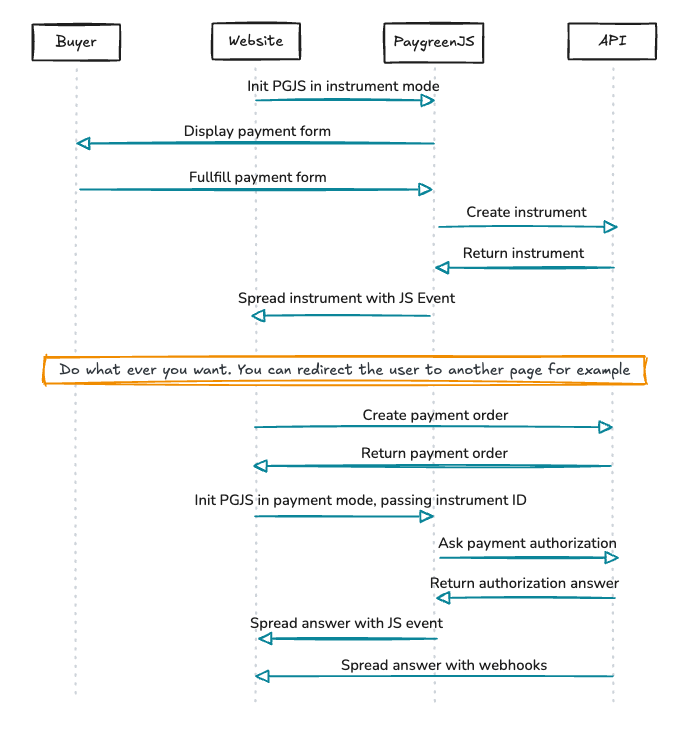
Asynchronous Payment Flow
Updated 5 months ago