

Introduction
PaygreenJS is a JavaScript library powered by Paygreen, designed to integrate Paygreen's payment solutions into your web application — securely and with minimal setup.
This guide walks you through installing, configuring and using PaygreenJS.
PCI CompliancePaygreenJS must be loaded directly from
pgjs.paygreen.fr. The script and stylesheet cannot be bundled with your application.
Core concepts
| Concept | What it is |
|---|---|
| 💳 Payment Order | A payment intent created from your backend. Contains amount, currency, customer data, current state and an object secret. |
| 🔑 Object Secret | A single-use token generated server-side, returned once at Payment Order creation. Authorizes PaygreenJS to act on that specific Payment Order. |
| 🟢 Public Key | Public identifier of your merchant account. Safe to expose in frontend code. |
| 🔒 Secret Key | Private key used by your backend to call the Paygreen API. Never expose it in frontend code. |
| 🧾 Payment Method | The type of payment the buyer will use: bank_card, amex, swile, conecs, etc. Full list → |
| 🔄 Payment Flow | The live state of a single payment attempt (pending, success, failed). Subscribe via PAYMENT_FLOW_ONCHANGE. Events → |
Payment flow at a glance
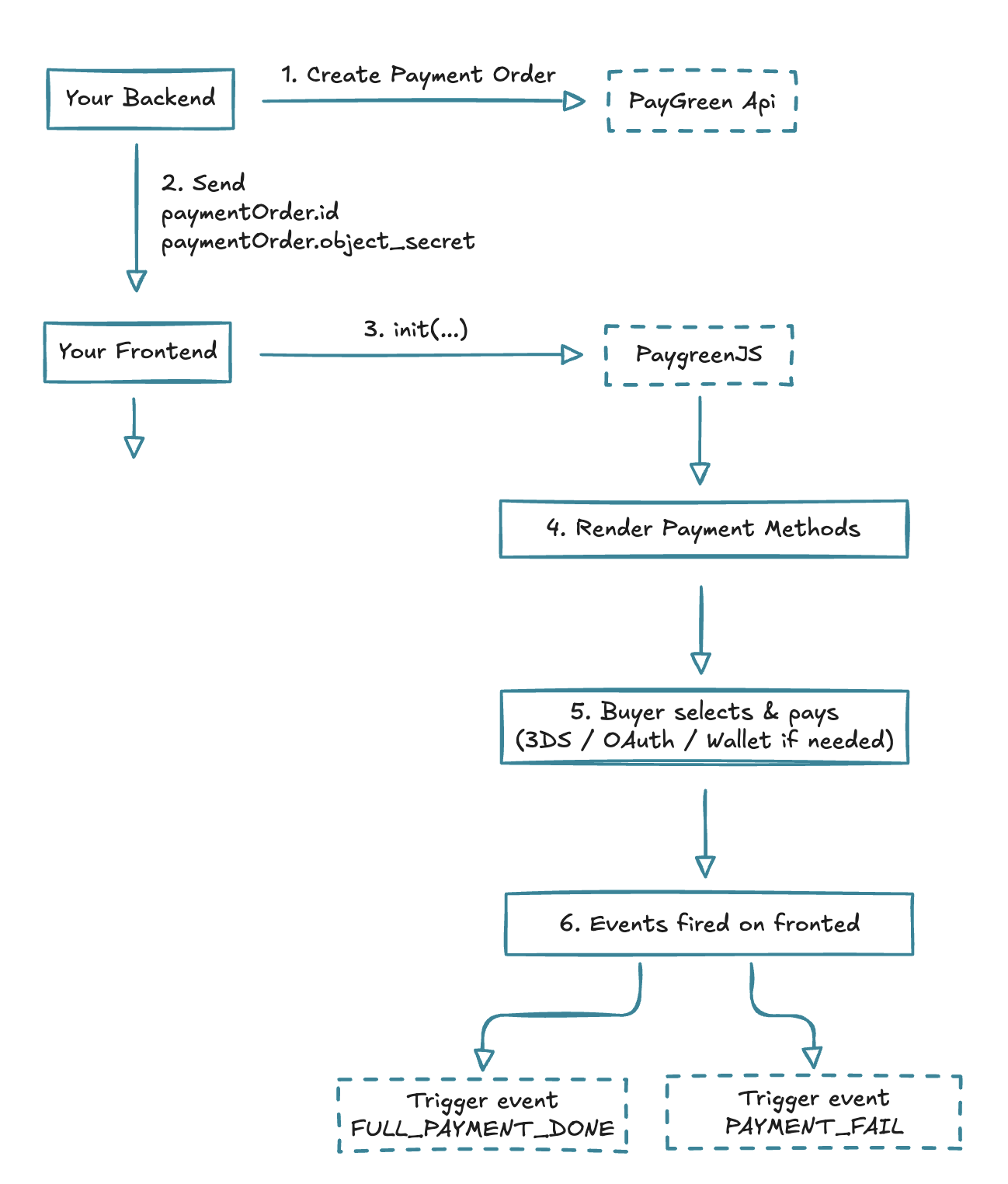
Two operating modes
| Mode | Use it for |
|---|---|
payment | Drive an existing Payment Order to authorization. Most common. |
instrument | Save a card or wallet as a reusable instrument, with or without an initial authorization. |
Quickstart
Before you start, make sure you have:
- A validated account at app.paygreen.fr.
- At least one enabled payment configuration.
- Your public key (Keys Page).
- Create a PaymentOrder (instructions here) to retrieve a payment order ID and an object_secret
Copy-paste this single block into your page, then replace publicKey, id and objectSecret with the values from your paymentOrder.
<!DOCTYPE html>
<html>
  <head>
    <title>MyShop - Payment</title>
		<!-- 1. Load the library -->
    <script defer type="text/javascript" src="https://pgjs.paygreen.fr/latest/paygreen.min.js"></script>
    <link href="https://pgjs.paygreen.fr/latest/paygreen.min.css" type="text/css" rel="stylesheet" />
  </head>

  <body>
  		<!-- 2. HTML containers -->
      <div id="paygreen-container"></div>
      <div id="paygreen-methods-container"></div>
      <div id="yourCustomDiv">
          <div id="paygreen-pan-frame"></div>
          <div id="paygreen-exp-frame"></div>
          <div id="paygreen-cvv-frame"></div>
          <div id="paygreen-reuse-checkbox-container"></div>
          <button id="payBtn" type="button" onclick="handleClick()" style="display: none">
              Pay
          </button>
      </div>
  </body>

  <!-- 3. Listen for events and initialize -->
  <script>
    window.addEventListener("load", function () {
      // Successful payment
      paygreenjs.on(paygreenjs.Events.FULL_PAYMENT_DONE, () => {
        console.log("Payment success");
      });

      // Reusable card consent toggle
      paygreenjs.on(paygreenjs.Events.REUSABLE_ALLOWED_CHANGE, (event) => {
        console.log(event.detail.reusable_allowed);
      });

      // Show the Pay button only when the buyer has picked a method
      paygreenjs.on(paygreenjs.Events.PAYMENT_FLOW_ONCHANGE, () => {
        const lastFlow = paygreenjs.status().flows.slice(-1)[0];
        document.querySelector('#payBtn').style.display = lastFlow?.method ? 'block' : 'none';
      });

      // Initialize
      paygreenjs.init({
        publicKey: "pk_xxxxxxxxxxx", <!--Add your public key here-->
        mode: "payment",
        paymentOrder: {
          id: "po_xxxxxxxxxxxxxxxxxxx", <!--Add your payment order id-->
          objectSecret: "xxxxxxxxxxxx", <!--Add the payment order object_secret-->
        },
        style: {
          input: { base: { color: 'black', fontSize: '18px' } },
        },
      });
    });
  </script>
</html>
Updated 4 months ago
Did this page help you?